Before you start
Step-by-step
Draw your signature
Open the PDF in Sign PDF, sign in the box, and press "Use drawn signature". You can upload a photo of a signature or stamp instead.
Place it on the signature line
Press "Add to this page", drag the signature onto the line, and adjust the size slider.
Save the signed PDF
Save under a new name, such as agreement-signed.pdf. This is the copy for the other party.
Find and mark personal details
Open the signed file in Redact PDF. Choose US Social Security numbers and press "Find and mark all", then repeat for phone numbers and email addresses. Draw boxes by hand for anything missed.
Save and verify the redacted copy
Redacted pages are saved as images, so the hidden text is gone, not just covered. Open the result and try selecting text in the boxes.
See it on screen
Captured on October 31, 2026 by running the tool with fictional one-page freelance services agreement with a made-up name, SSN, phone and email. All sample data is fictional.
Drawing a signature
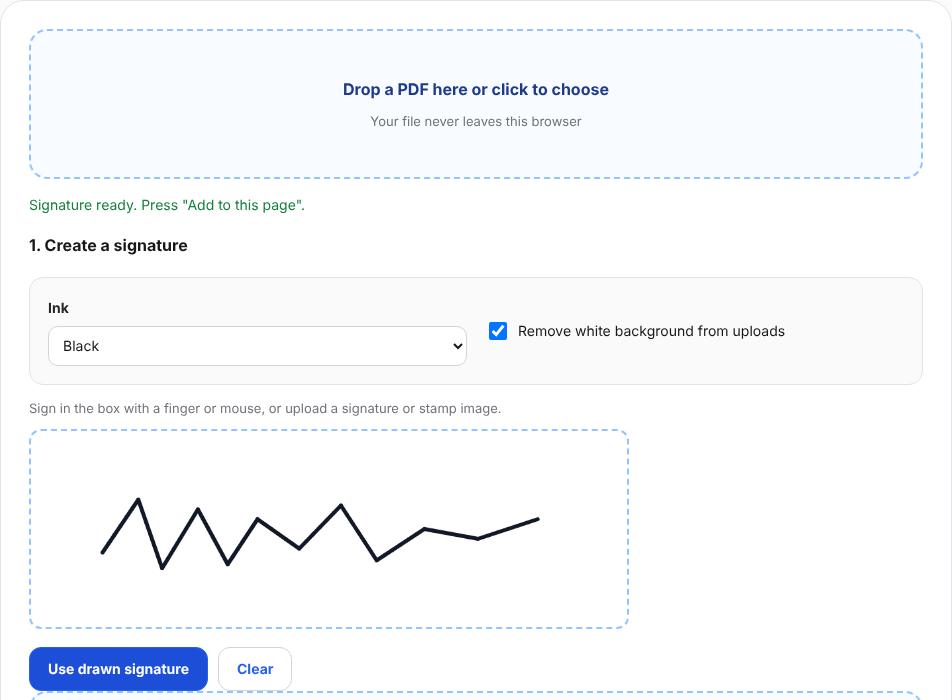
A signature drawn with the mouse appears, trimmed, under "Current signature" after pressing "Use drawn signature". Placed on the contractor line
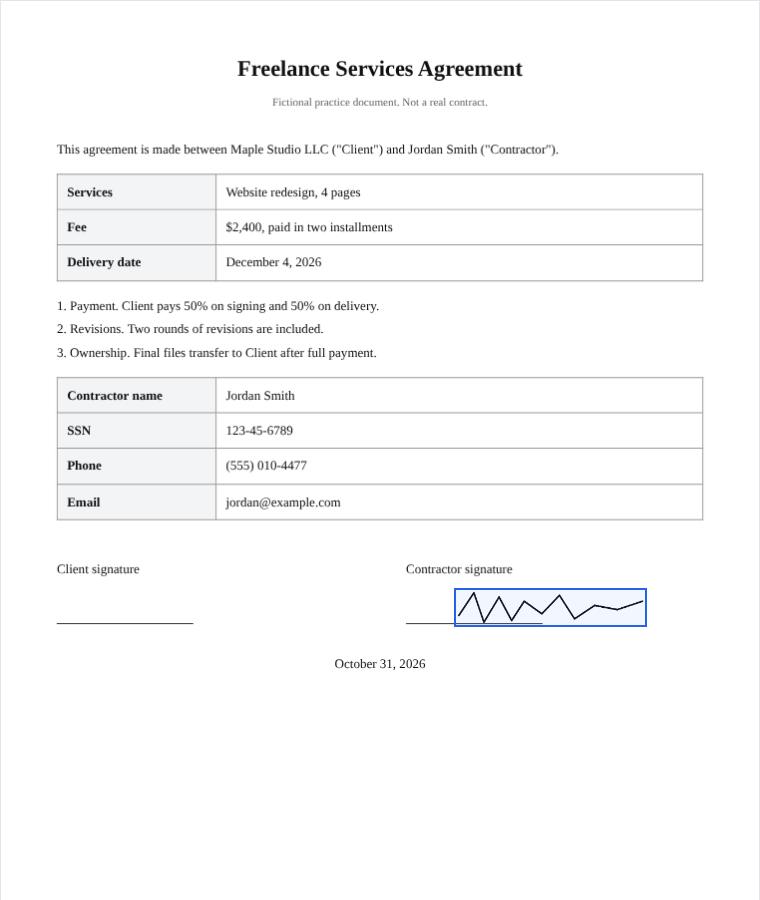
The signature was dragged onto the contractor signature line. The signed file was one Letter page, 33 KB. SSN, phone and email marked
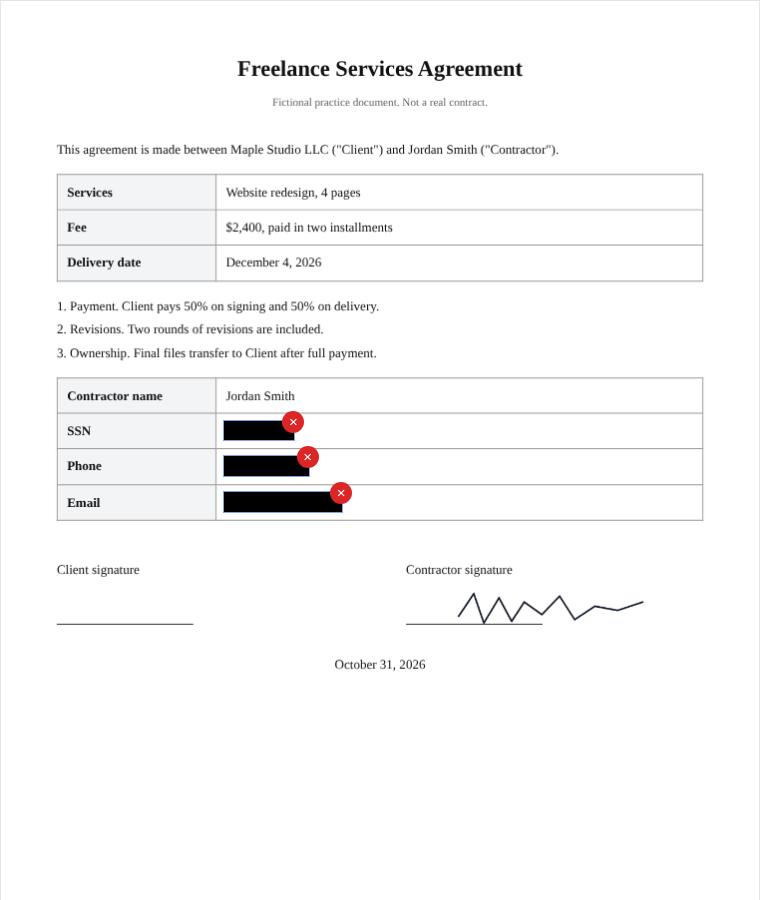
Find and mark all placed boxes over the SSN, phone number and email. Each box has an × to remove it. Saved redacted copy
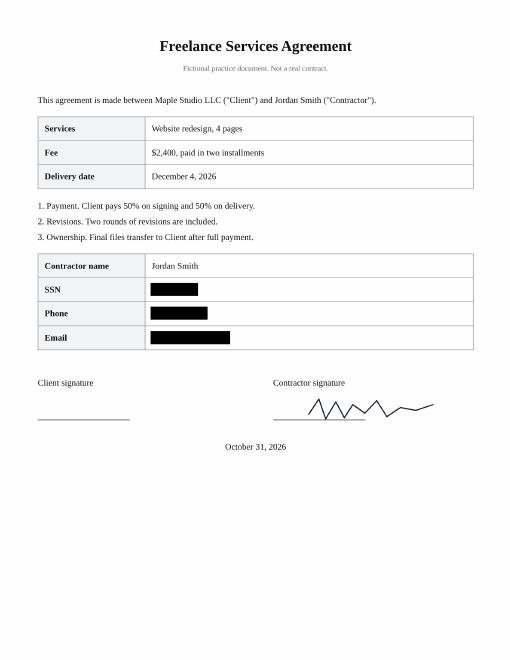
The redacted copy (one page, about 160 KB) shows solid boxes; extracting text from it returned nothing.
Worked example
A fictional services agreement
After signing, the PDF was one Letter page (33 KB). Redact PDF marked one SSN, one phone number and one email. Text extraction on the redacted copy returned nothing, so no hidden text was left behind.
- Ink
- Black or blue
- Find
- SSN → phone → email
- Box color
- Black
- Quality
- Sharp (200 dpi)
Check the result
- The signature sits on the line without covering text.
- Every SSN, phone number and email is covered in the redacted copy.
- Selecting text inside a box copies nothing.
Limits and tips
- This places an image of your handwritten signature; it is not a certificate-based digital signature. Use whatever the other party requires.
- Scanned PDFs have no searchable text, so draw boxes by hand.
- Redacted pages lose text selection and search as well.
Questions
Is my signature uploaded?
No, everything runs in your browser.
Can I undo a redaction later?
Not in the redacted copy. Keep the original.
Multi-page PDFs?
Yes, move between pages to sign and redact each one.
Try it with your own file
Open the tool and review the result before sharing it.