Before you start
Step-by-step
Open the image
Choose a PNG, JPG, or WebP image that your browser can open. The editor displays the image so you can check that you selected the right file.
Choose a ratio or crop
Keep the aspect ratio to avoid stretching the picture. If your target has a different shape, crop to that shape first. Check that faces, text, or product edges remain inside the crop.
Set width and height
Enter the target pixel dimensions or choose a preset. With the aspect ratio locked, changing one dimension also changes the other. For an exact target, make sure the ratio and both dimensions match before saving.
Save and verify the result
Choose the download options and save the result. Open the downloaded image and check its pixel dimensions, visible detail, and file size against the destination requirements.
Worked example
Turn an 800 × 600 image into a 400 × 400 square
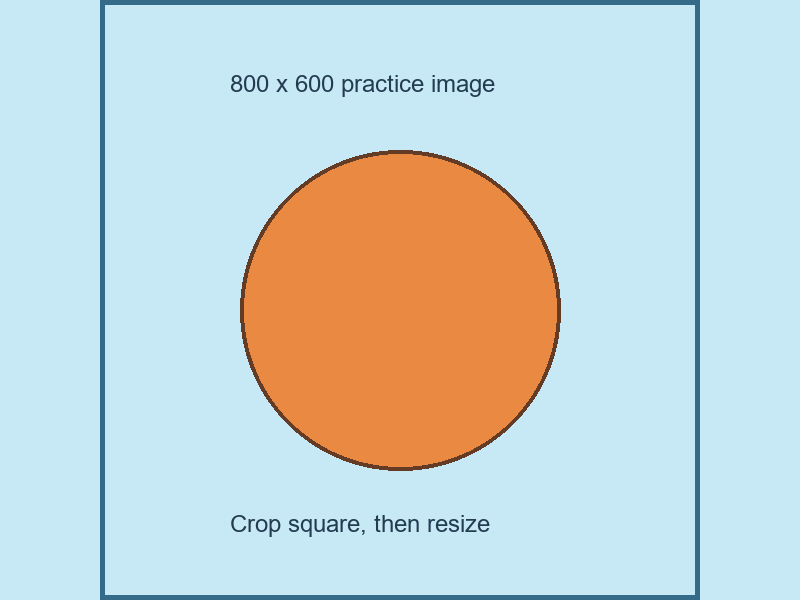
Download the practice image. Crop a centered 600 × 600 square first, keeping the subject inside it. Then resize that square to 400 × 400 with the aspect ratio locked. Simply changing the original width and height to 400 would distort it.
- Input
- 800 × 600 pixels
- Crop ratio
- 1:1 square
- Final dimensions
- 400 × 400 pixels
- Aspect ratio
- Locked after cropping
Check the result
- The downloaded image has the requested pixel width and height.
- The subject is not stretched or unintentionally cropped.
- The file format and size are accepted by the destination.
Limits and tips
- Enlarging a small image does not recreate detail missing from the original.
- The magic wand erases connected areas with similar colors. It is not automatic AI subject detection.
- A preset helps set dimensions; it does not guarantee compliance with official passport or application-photo requirements.
Questions
How do I avoid stretching an image?
Keep the aspect ratio locked. If the required ratio differs, crop the image rather than stretching it into the new shape.
Can I resize several images?
The editor accepts multiple images and includes batch options. Check a single output first, then review the batch results.
Are my pictures processed in the browser?
Image editing runs in your browser. Site delivery, analytics, and other external resources can make separate network requests.
Try it with your own file
Open the tool and review the result before sharing it.